Firebase Cloud Messaging
FCM (Firebase Cloud Messaging) is a popular way to integrate cross-platform push notifications.
Here is a summary of the steps you would need to take:
iOS Setup
Create an APNS Auth Key
- Log into your Apple Developer account.
- Head to the Keys section.
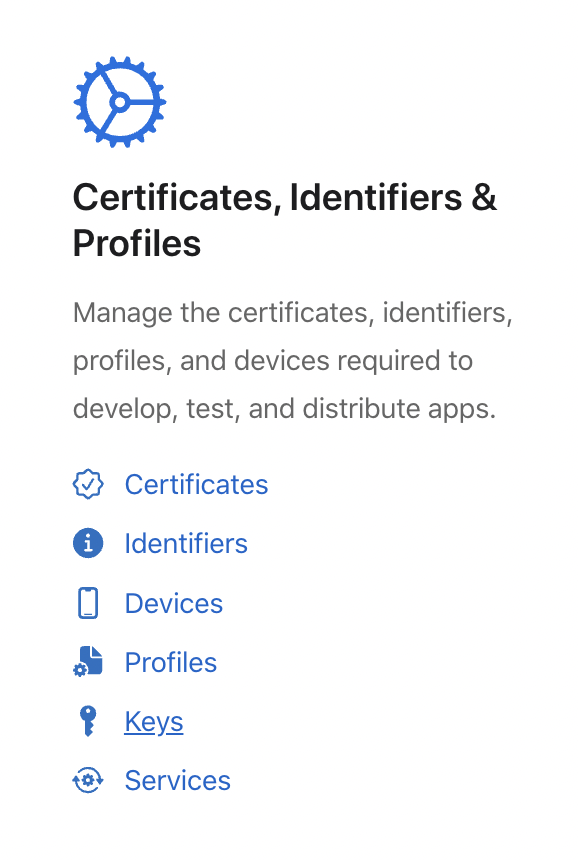
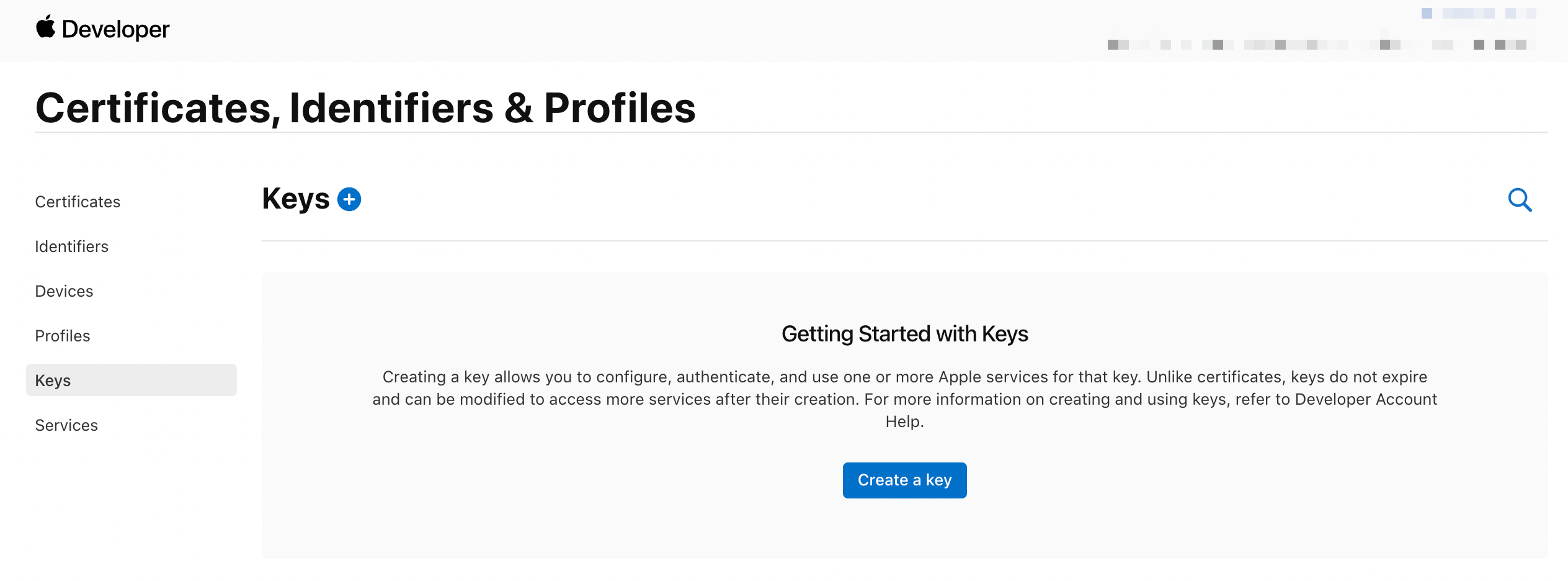
- Click on the [+] to add a new Key. If you have multiple Environments, it is recommended to create a key for each Environment.
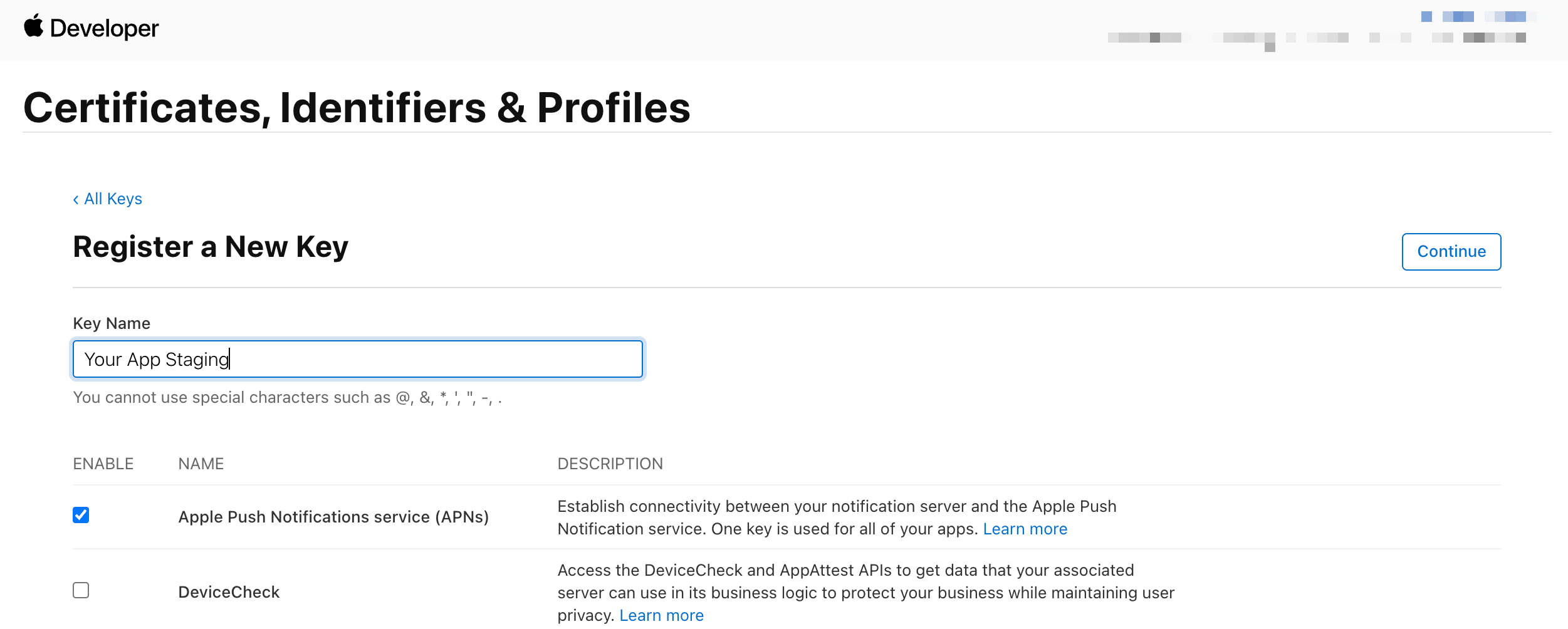
- Provide a name for your Key. We recommend the name of your app followed by the Environment. Enable Apple Push Notifications service (APNs). Hit Continue.
- In the final step, don't forget to hit the Download button to download your key. IMPORTANT: This step can be done only once. Save this file in a secure place. Also, make a note of your Key ID as you'll need it later.
Setup Firebase Project
-
Create a Firebase Project. (Learn more)
-
Follow the steps prompted by the Firebase Wizard:
- Download
GoogleService-Info.plistfrom Firebase. (Learn more) - Copy
GoogleService-Info.plistto the root of your Xcode project.
noteIf you're using multiple Environments, follow Firebase’s guidance for multiple Apple environments: use separate targets (or schemes) per environment, keep each
GoogleService-Info.plistin its own folder (for exampleConfig/Firebase/Staging/andConfig/Firebase/Production/). For each plist, use Xcode’s File Inspector → Target Membership so only the matching app target includes that file—each build should bundle one plist.For DashX public key / base URI per environment, use xcconfig as described in iOS SDK — Multiple environments with xcconfig.
- Add Firebase Messaging to your project (for example
pod 'FirebaseMessaging'in your Podfile andpod install, or add the Firebase iOS SDK via Swift Package Manager). If you useDashXAppDelegateand FCM helpers, also add the DashX and DashXFirebase products from thedashx-iosSwift package.
Firebase + DashX in
AppDelegateConfigure Firebase after
DashX.configure(...), assignMessaging.messaging().delegate, and forward FCM tokens to DashX sosubscribe()can register the device:import FirebaseCoreimport FirebaseMessagingimport DashXimport DashXFirebase@mainclass AppDelegate: DashXAppDelegate, MessagingDelegate {func application(_ application: UIApplication,didFinishLaunchingWithOptions launchOptions: [UIApplication.LaunchOptionsKey: Any]?) -> Bool {DashX.configure(withPublicKey: "YOUR_PUBLIC_KEY" /* , baseURI: ..., targetEnvironment: ... */)FirebaseApp.configure()Messaging.messaging().delegate = selfDashX.requestNotificationPermission { status inif status == .authorized {DispatchQueue.main.async {UIApplication.shared.registerForRemoteNotifications()}}}return true}func messaging(_ messaging: Messaging, didReceiveRegistrationToken fcmToken: String?) {guard let token = fcmToken else { return }DashX.setFCMToken(to: token)}}Override
notificationDeliveredInForeground,notificationClicked, andhandleLinkonDashXAppDelegatewhen you need custom UI or deep links. SetFirebaseAppDelegateProxyEnabledto NO in Info.plist if Firebase should not swizzle the app delegate (see step 7 in Receive push notifications).Full example projectFor an end-to-end Firebase + DashX iOS sample (including
GoogleService-Info.plistlayout andAppDelegateintegration), see dashx-demo-ios. - Download
-
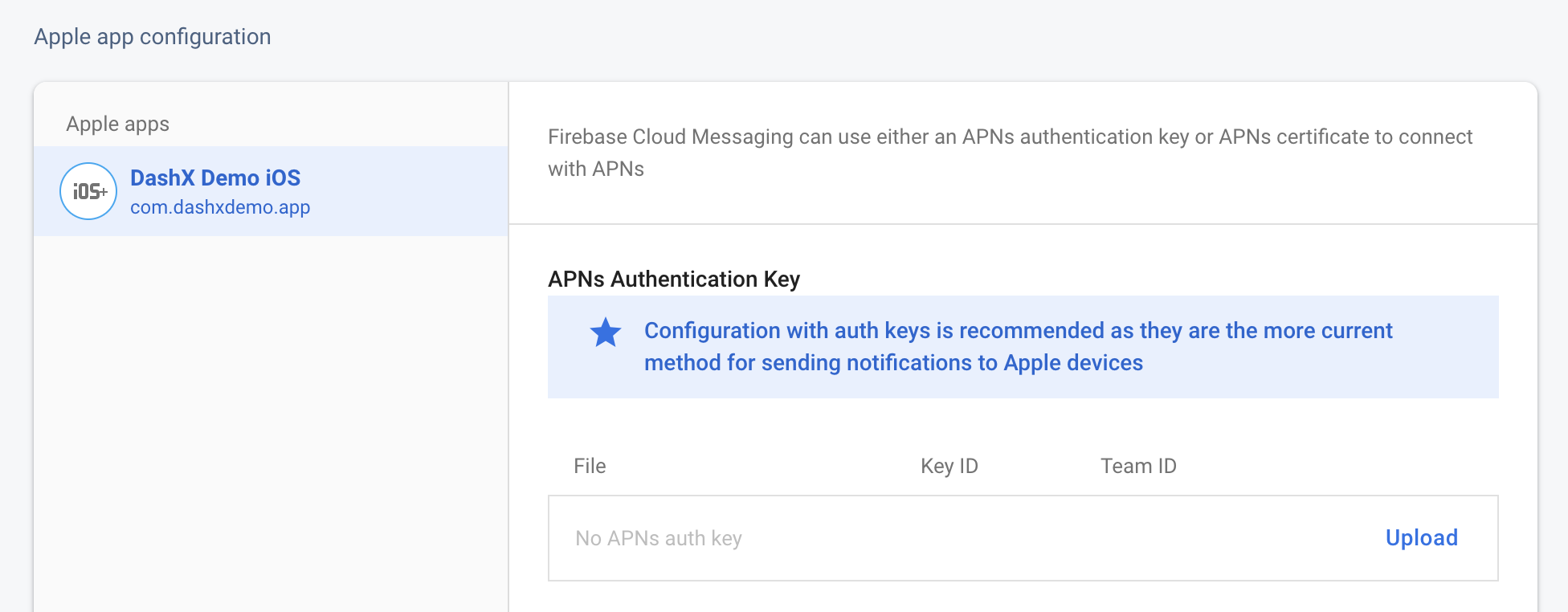
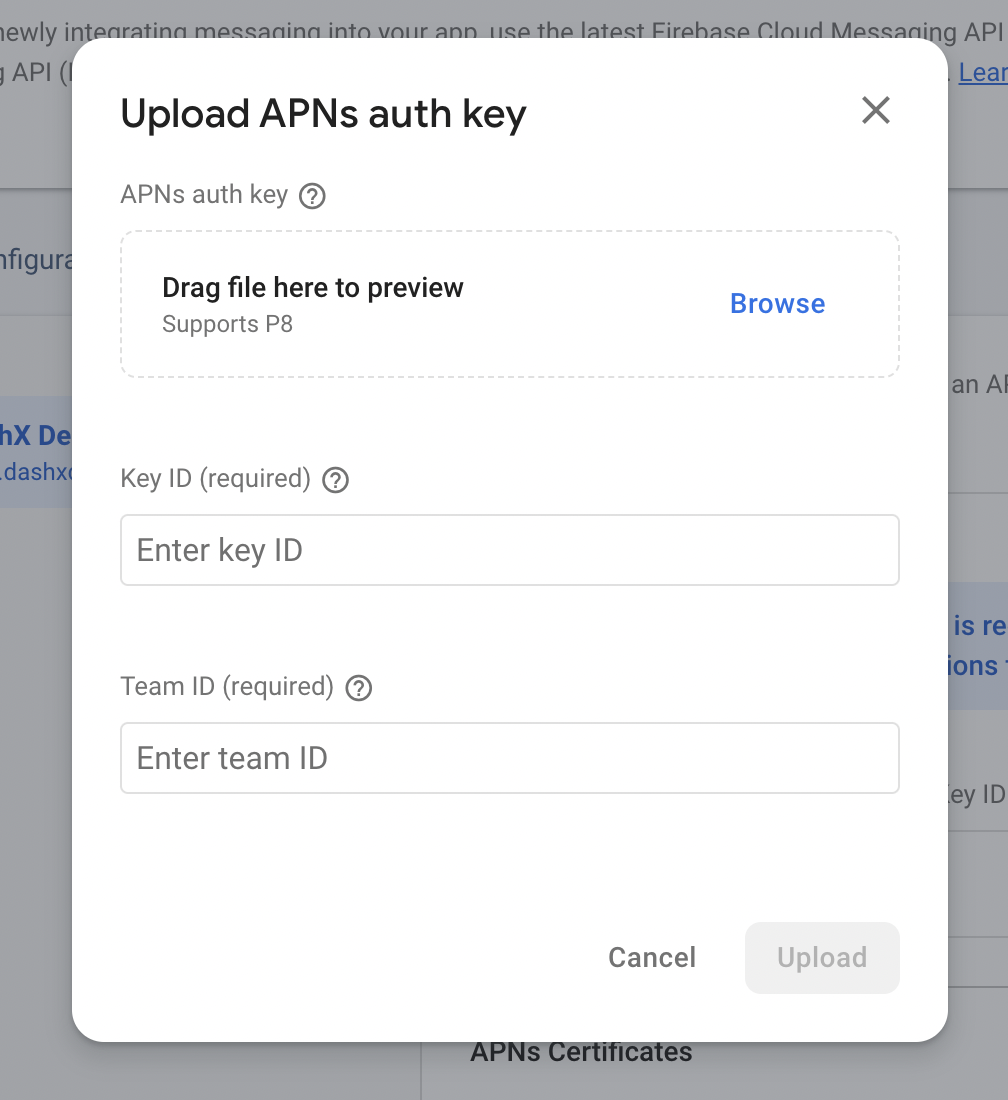
Next, you will need to go to Project Settings > Cloud Messaging tab. Here, click on Upload.
-
Upload your file (you should have this downloaded already after creating your Key), enter your Key ID (you would have obtained this after creating the Key, but you can always find it by selecting your Key from Apple Developer > Account > Keys, and finally, enter your Team ID (you can find this from Apple Developer > Account under the Membership details section).
Add Capabilities to your Xcode project
-
Open your project in Xcode
-
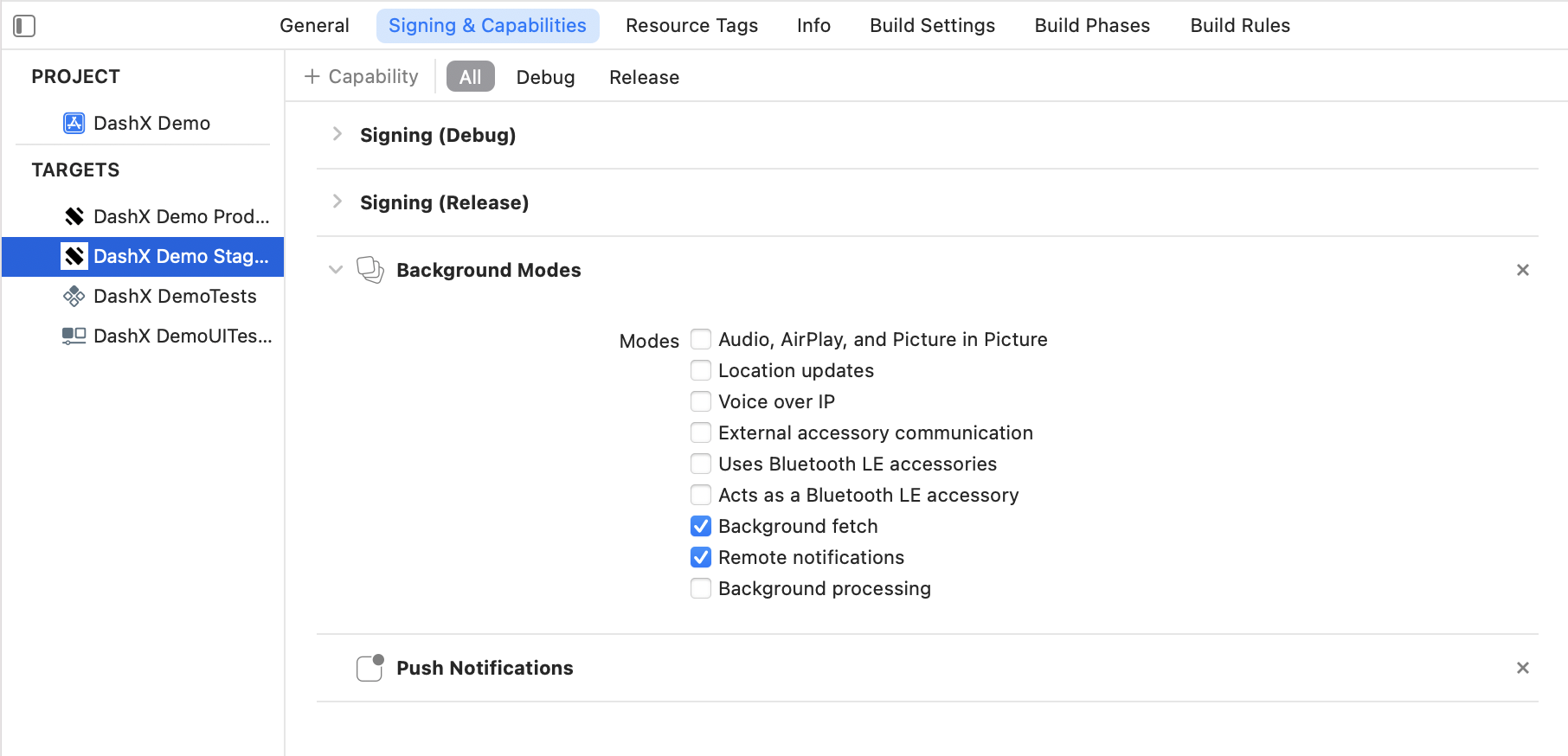
Select each non-test target and go to the Signing & Capabilities tab.
-
Add the following Capabilities to each non-test target:
- Push Notifications
- Background Modes > Background Fetch
- Background Modes > Remote Notifications
Universal links
- You can either find your apple-app-site-association files or create them as needed for each subdomain. To create a file, use a format similar to the one shown below. For more information and detailed instructions on how to create the apple-app-site-association file, read Apple's Supporting Associated Domains document.
{
  "applinks": {
    "apps": [],
    "details": [
      {
        "appID": "<TEAM_ID>.<BUNDLE_ID>",
        "paths": [
          "NOT /path/toignore",
          "/path/*"
        ]
      }
    ]
  }
}
The paths section defines the rules that define which URLs your app can handle. The apple-app-site-association file should be uploaded to the root of your HTTPS web server or to the .well-known subdirectory. The file needs to be accessible via HTTPS—without any redirects—at https://<domain>/apple-app-site-association or https://<domain>/.well-known/apple-app-site-association.
-
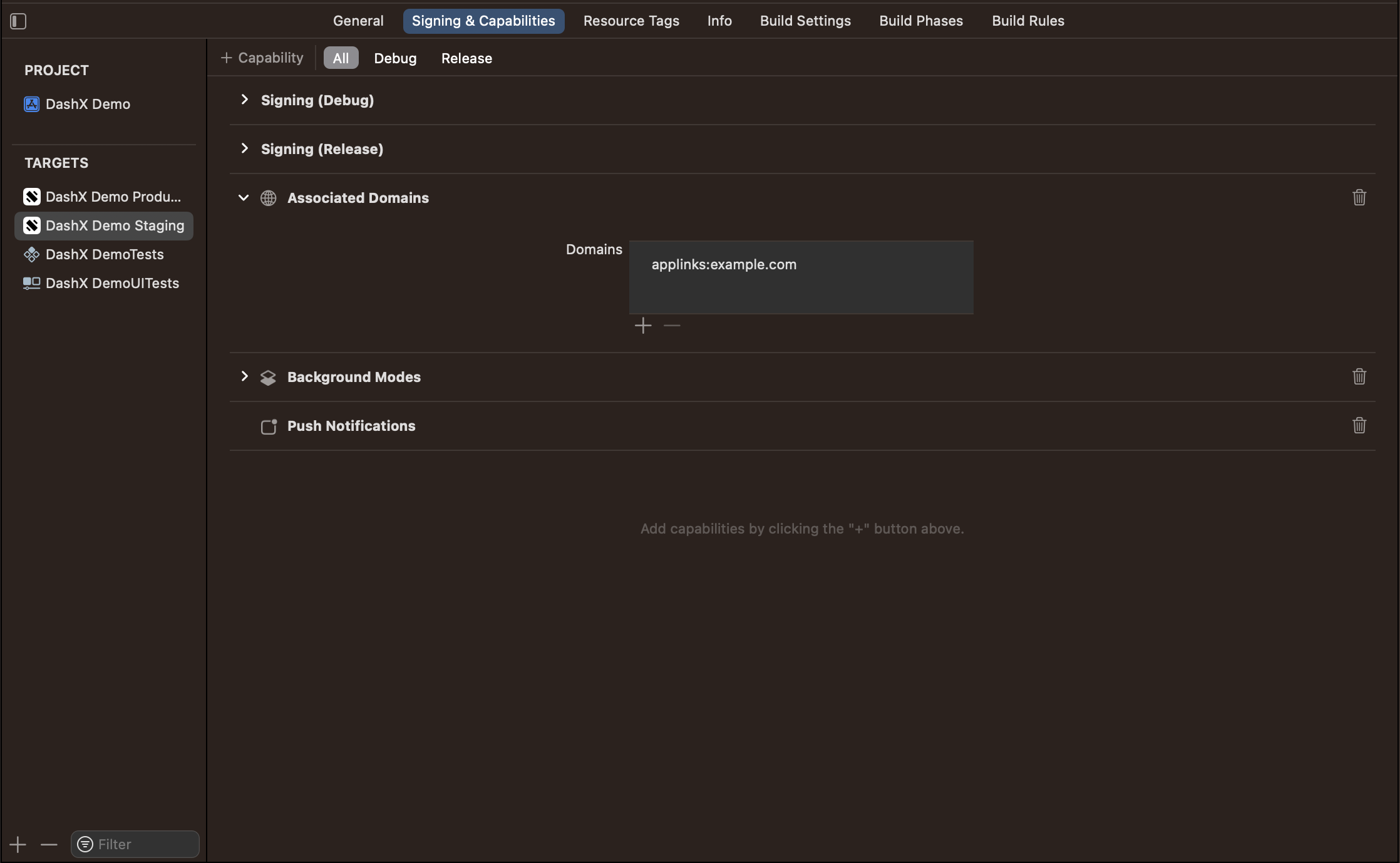
Configure your Xcode project's
Associated Domains, so that iOS can understand which links to open with your app instead of a web browser.- Select each non-test target and go to the Signing & Capabilities tab.
- Add the following Capabilities to each non-test target:
- Associated domains
iOS downloads a fresh copy of an app's apple-app-site-association file only when installing or updating that app. Because of this, changes to this file should be accompanied by a new version of the app.
- Update your app's code to handle Universal Links.
// In SceneDelegate, add the following functions

func scene(_ scene: UIScene, willConnectTo session: UISceneSession, options connectionOptions: UIScene.ConnectionOptions) {
  // ...
  DashX.handleUserActivity(userActivity: connectionOptions.userActivities.first)
  // ...
}

func scene(_ scene: UIScene, continue userActivity: NSUserActivity) {
  // ...
  DashX.handleUserActivity(userActivity: userActivity)
  // ...
}
// This method is called in your AppDelegate when you receive a Universal Link
override func handleLink(url: URL) {
  // Perform actions like navigating to a specific view
}
Android Setup
- Create a Firebase Project. (Learn more)
- Download
google-services.jsonfrom Firebase. (Learn more) - Copy
google-services.jsonto your module directory (<project>/app), or a build variant directory (<project>/app/<buildVariant>) if you use multiple environments. (seestagingandproductionfolders in dashx-demo-android for example) - Add the Google services gradle plugin, which automatically finds & parses the
google-services.jsonfile:-
Using the newer plugins DSL
In your root
build.gradlefile,build.gradleplugins {id 'com.google.gms.google-services' version '4.4.2' apply false}In your module-level
app/build.gradlefile,app/build.gradleplugins {id 'com.google.gms.google-services'} -
Using the legacy syntax for applying plugins
In your root
build.gradlefile,build.gradlebuildscript {dependencies {classpath 'com.google.gms:google-services:4.4.2'}}In your module-level
app/build.gradlefile,app/build.gradleapply plugin: 'com.google.gms.google-services'
-
DashX Setup
On DashX, you will need to install the Firebase Cloud Messaging app. Firebase no longer recommends using the Legacy Server API Key approach. Instead, you should use the FCM HTTP v1 API with a Firebase Service Account JSON file.
Enable Firebase Cloud Messaging API
- In your Firebase console, open Project Settings for your Firebase project.
- Go to the Service Accounts tab.
- Under Firebase Admin SDK, click "Generate new private key".
- Download the JSON file and store it securely.
You do not need to create a separate service account unless you want to use a custom IAM setup. The default Firebase Admin SDK service account is sufficient for FCM HTTP v1 access.
This JSON file contains the credentials DashX will use to generate OAuth 2.0 access tokens for the FCM HTTP v1 API.
Install Firebase Cloud Messaging app on DashX
-
On DashX, switch to the Workspace dashboard from the top bar.
-
Go to the Apps section.
-
Under Messaging Services, select the Firebase Cloud Messaging app.
-
When installing the app, enter:
- Name: A human-readable name for the installation.
- Identifier: A programmatic identifier used via the DashX API.
-
Configure the installation for each Environment by clicking Configure next to the environment name.
-
Paste the Firebase Service Account JSON credentials for the relevant Firebase project.
-
Save the configuration for each environment.
Example Service Account JSON Fields
Your Firebase Service Account JSON file will typically contain fields similar to:
{
  "type": "service_account",
  "project_id": "your-project-id",
  "private_key_id": "xxxxxxxxxxxxxxxx",
  "private_key": "-----BEGIN PRIVATE KEY-----\n...\n-----END PRIVATE KEY-----\n",
  "client_email": "firebase-adminsdk-xxxxx@your-project-id.iam.gserviceaccount.com",
  "client_id": "1234567890"
}
DashX can use these credentials to obtain short-lived OAuth 2.0 access tokens and send notifications through the FCM HTTP v1 API.
References
You can find detailed instructions on setting up a Firebase Project on the Firebase Documentation website:
- iOS Setup: https://firebase.google.com/docs/ios/setup
- Android Setup: https://firebase.google.com/docs/android/setup