Android
Ensure you have completed the Prerequisites section before continuing.
Installation
The SDK currently targets minSdk 26 and compileSdk/targetSdk 34.
-
Add Maven Central repository to your settings.gradle file:
settings.gradledependencyResolutionManagement {repositoriesMode.set(RepositoriesMode.FAIL_ON_PROJECT_REPOS)repositories {// ...google()mavenCentral()}} -
Add
dashx-androidas a dependency in your module-level build.gradle file:app/build.gradledependencies {// ...implementation 'com.dashx:dashx-android:1.2.8'} -
Ensure you're using Java 11 or higher (Java 11 is the minimum).
app/build.gradleandroid {compileOptions {sourceCompatibility = JavaVersion.VERSION_11targetCompatibility = JavaVersion.VERSION_11}}
If you're using Android Studio, you should hit the Sync Now button that pops up after modifying build.gradle.
Configuration
DashX needs to be initialized as early as possible in your application's lifecycle, which is generally in an instance of the Android Application class:
import android.app.Application
import com.dashx.android.DashX

class MyApplication : Application() {
    override fun onCreate() {
        super.onCreate()

        DashX.configure(
            context = this,
            publicKey = "...", // required
            baseURI = null, // optional (defaults to https://api.dashx.com/graphql)
            targetEnvironment = null, // optional
            callbackDispatcher = null, // optional (defaults to Dispatchers.Main.immediate)
        )
    }
}
If your product uses multiple environments, a good practice is to:
- create
productFlavorsfor each environment, - use
buildConfigFieldto declare your DashX configuration, and then - use
BuildConfigto pass your configuration as parameters.
Optional: activity lifecycle tracking
If you want automatic tracking for app installed/updated/opened and session length, you can enable activity lifecycle tracking:
import com.dashx.android.DashXActivityLifecycleCallbacks

DashXActivityLifecycleCallbacks.enableActivityLifecycleTracking(this)
Optional: automatic screen tracking
To automatically track screen views based on Activity labels:
DashXActivityLifecycleCallbacks.enableScreenTracking(this)
Permissions
By default, the dashx-android SDK automatically requests the following permissions:
<uses-permission android:name="com.google.android.gms.permission.AD_ID" />
If you need to meet certain privacy restrictions (example: if your app targets children), you can easily remove the AD_ID permission declaration in your Android Manifest file:
<!-- Ensure that xmlns:tools is declared in your manifest tag -->
<manifest
    xmlns:android="http://schemas.android.com/apk/res/android"
    xmlns:tools="http://schemas.android.com/tools"
    package="..."
>

<!-- Remove the permission from your final merged manifest -->
<uses-permission android:name="com.google.android.gms.permission.AD_ID" tools:node="remove" />
Publishing
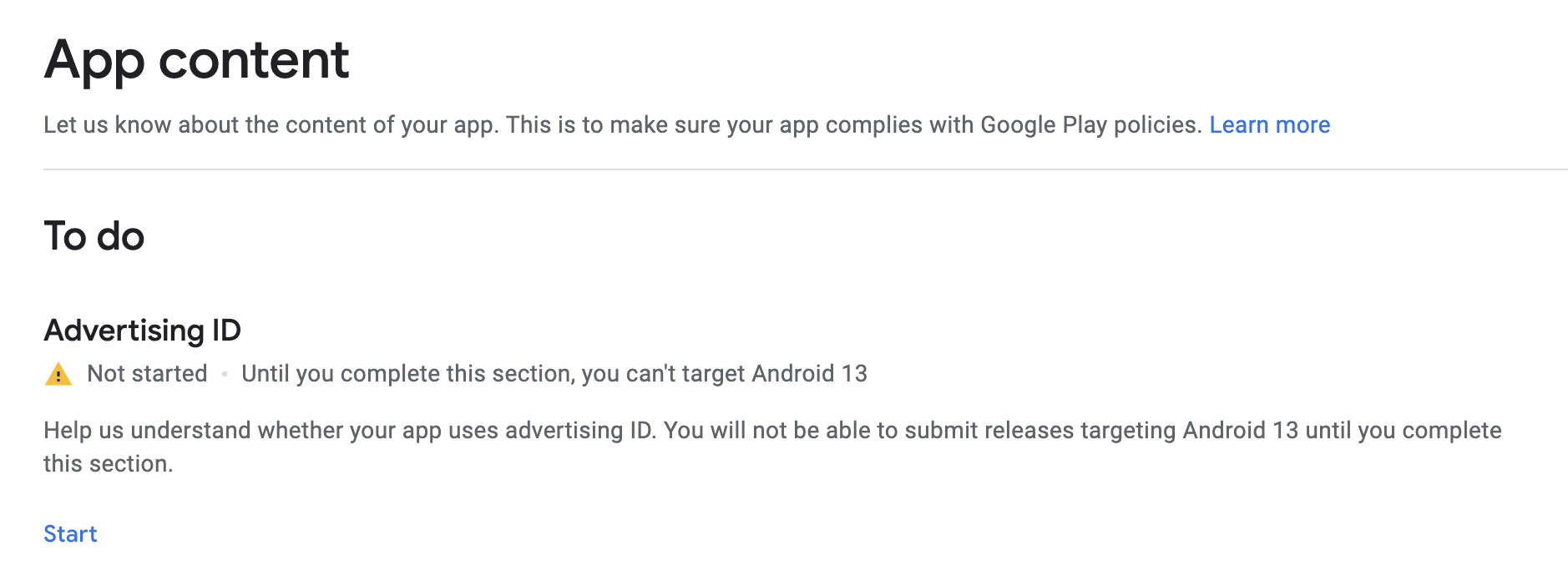
On the Play Store Console, you will need to fill out the Advertising ID form to prevent any warnings during release:
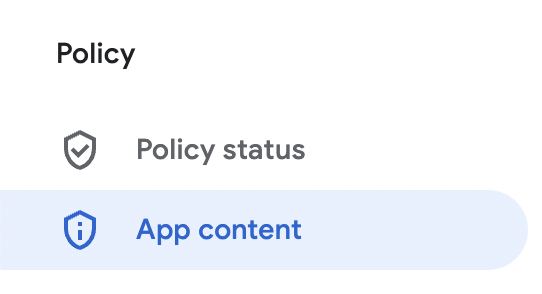
- Head to the Policy > App Content section in the sidebar.
- Hit Start under the Advertising ID section.
- For the question, "Does your app use advertising ID?", select the answer "Yes".
- For the question, "Why does your app need to use advertising ID?", select the option "Analytics".
Troubleshooting
As an optional step, you can set the log level for debugging your integration:
import com.dashx.android.DashXLog

// ...

DashXLog.setLogLevel(DashXLog.LogLevel.DEBUG)
By default, the log level is set to ERROR. You can set it to one of: DEBUG (most logs), INFO, ERROR or OFF (no logs).
Crash tracking
To automatically track unhandled exceptions, enable the DashX exception handler:
import com.dashx.android.DashXExceptionHandler

DashXExceptionHandler.enable()
Usage
Most public methods have suspend variants for Kotlin coroutine users (e.g., identifyAsync, trackAsync, fetchRecordAsync, searchRecordsAsync). These throw DashXException on failure instead of using callbacks.
Account Center
setIdentity)You can set uid without token and still use public features/resources (for example identify, track, and public content). The token is the DashX Identity Token: a JWT from your backend, signed with your workspace private key (see Account Center). Setting token grants access to your private resources in DashX—use it only for users who need that access, and treat it as sensitive. Pass null for token when that access is not needed. uid and token are both nullable.
// User id only — public features/resources (add token for your private resources)
DashX.setIdentity(uid = "123", token = null)

// Signed-in user + JWT for private resources
DashX.setIdentity(uid = "123", token = "your-identity-token")

// After token refresh, persist the new token (same uid)
DashX.setIdentity(uid = "123", token = "refreshed-identity-token")

// Send user attributes
DashX.identify(
    hashMapOf(
        "uid" to "123",
        "email" to "john@example.com",
        "first_name" to "John",
        "last_name" to "Doe",
    ),
    onSuccess = { /* ... */ },
    onError = { error -> /* ... */ }
)

// Clear identity, generate new anonymous ID, and unsubscribe from push
DashX.reset()
Analytics
DashX.track("Button Clicked", hashMapOf(
    "label" to "Click here",
    "placement" to "top"
))
Track screen views:
DashX.screen("HomeActivity", hashMapOf(
    "referrer" to "deep_link"
))
Messaging
Push notifications require your app to be configured for Firebase Cloud Messaging. The SDK declares Firebase as an optional dependency, so you must add it to your app's build.gradle:
dependencies {
    implementation platform('com.google.firebase:firebase-bom:33.8.0')
    implementation 'com.google.firebase:firebase-messaging-ktx'
}
On Android 13+, you must also request the runtime notification permission (POST_NOTIFICATIONS) before notifications can be shown.
The SDK automatically tracks notification delivered, opened, and dismissed events via the built-in DashXFirebaseMessagingService. If you use a custom FirebaseMessagingService, you can track these events manually:
DashX.trackMessage("message-id", TrackMessageStatus.OPENED)
// Subscribe for Push Notifications (FCM)
// Important: identify must complete before calling subscribe,
// so the server knows which user to associate the device token with.

// Using coroutines (recommended):
lifecycleScope.launch {
    DashX.identifyAsync(hashMapOf("uid" to "user-123"))
    DashX.subscribe()
}

// Using callbacks:
DashX.identify(
    options = hashMapOf("uid" to "user-123"),
    onSuccess = { DashX.subscribe() },
    onError = { error -> Log.e("DashX", "Identify failed: $error") }
)

// If your app owns the FCM service:
DashX.subscribe(tokenFromYourService)

// Unsubscribe from Push Notifications. Optional callbacks let you observe
// the outcome:
//   - onSuccess(true)   — backend found and unsubscribed a matching contact.
//   - onSuccess(false)  — non-error outcome meaning "no matching contact"
//                         (anonymous UID rotated, FCM token stale, contact
//                         already unsubscribed). Device ends up unsubscribed
//                         either way.
//   - onError(err)      — SDK-state problem (Firebase missing, configure()
//                         not called) or transport failure (deleteToken,
//                         GraphQL/network error).
DashX.unsubscribe(
    onSuccess = { didUnsubscribe ->
        // didUnsubscribe is a Boolean
    },
    onError = { err ->
        // err is a DashXError
    }
)

// Or fire-and-forget — both callbacks default to null:
DashX.unsubscribe()

// Manage user preferences (requires setIdentity with uid + JWT when private resources require it)
DashX.fetchStoredPreferences(
    onSuccess = { prefs ->
        // prefs.preferenceData is a JsonObject
    },
    onError = { err ->
        // ...
    }
)

// Save preferences
val preferenceData = kotlinx.serialization.json.buildJsonObject {
    put("push", true)
    put("email", false)
}

DashX.saveStoredPreferences(
    preferenceData = preferenceData,
    onSuccess = { _ -> /* ... */ },
    onError = { _ -> /* ... */ }
)
CMS
DashX.fetchRecord(
    urn = "email/welcome",
    language = "en_US",
    preview = true,
    onSuccess = { recordJson ->
        println(recordJson)
    },
    onError = { err ->
        println(err)
    }
)
fetchRecord accepts following optional arguments
| Name | Type | Example |
|---|---|---|
preview | Boolean | true |
language | String | "en_US" |
fields | List<JsonObject> | |
include | List<JsonObject> | |
exclude | List<JsonObject> |
import kotlinx.serialization.json.buildJsonObject

DashX.searchRecords(
    resource = "email",
    language = "en_US",
    order = listOf(buildJsonObject { put("created_at", "DESC") }),
    limit = 10,
    preview = true,
    onSuccess = { records ->
        println(records)
    },
    onError = { err ->
        println(err)
    }
)
searchRecords accepts the following optional arguments:
| Name | Type | Example |
|---|---|---|
filter | JsonObject | buildJsonObject { put("status", "published") } |
order | List<JsonObject> | listOf(buildJsonObject { put("created_at", "DESC") }) |
limit | Int | 10 |
preview | Boolean | true |
language | String | "en_US" |
fields | List<JsonObject> | |
include | List<JsonObject> | |
exclude | List<JsonObject> |
Assets
DashX.uploadAsset(
    file = imageFile,
    resource = "users",
    attribute = "avatar",
    onSuccess = { asset ->
        println(asset)
    },
    onError = { err ->
        println(err)
    }
)
The SDK automatically detects the MIME type and polls for upload completion. You can configure polling behaviour with DashX.pollIntervalMs (default: 3000ms) and DashX.maxPollRetries (default: 10).
Error Handling
All callback-based methods receive a DashXError on failure. The error types are:
| Error | Retryable | When |
|---|---|---|
NotConfigured | No | DashX.configure() was not called |
NotIdentified | No | setIdentity() required but not called |
GraphQLError | No | Server returned a GraphQL error |
NetworkError | Yes | Timeout, DNS failure, or connectivity issue |
AssetError | No | Asset upload or MIME detection failure |
Use error.isRetryable to decide whether to retry:
DashX.track("Event",
    onError = { error ->
        if (error.isRetryable) {
            // retry later
        }
    }
)
Suspend variants (e.g., trackAsync) throw DashXException instead, which wraps a DashXError. Access it via exception.error.
Offline Event Queue
Failed track() calls are automatically queued and retried with exponential backoff (2 s base, capped at 5 min, up to 10 retries). The queue holds up to 1,000 events, is persisted across app restarts, and flushes automatically after configure().
To manually flush:
DashX.flushEventQueue()
Advanced
ProGuard / R8
The SDK ships consumer ProGuard rules (consumer-rules.pro) that are automatically applied when your app enables minification. No manual ProGuard configuration is required.
Custom FirebaseMessagingService
If your app already has its own FirebaseMessagingService, remove the SDK's service from the merged manifest and forward tokens manually:
<service
    android:name="com.dashx.android.DashXFirebaseMessagingService"
    tools:node="remove" />
Then in your service, forward new tokens to DashX:
override fun onNewToken(token: String) {
    super.onNewToken(token)
    DashX.subscribe(token)
}
Configurable Timeouts
The SDK exposes configurable timeout properties:
DashX.imageDownloadTimeoutMs = 5000  // notification image download timeout (ms)
DashX.pollIntervalMs = 3000          // asset upload poll interval (ms)
DashX.maxPollRetries = 10            // max asset upload poll attempts
Callback Dispatcher
All onSuccess and onError callbacks are invoked on the main thread by default (Dispatchers.Main.immediate). To change this:
DashX.setCallbackDispatcher(Dispatchers.Unconfined)
Shutdown
To cancel all in-flight operations and release resources:
DashX.shutdown()
You must call DashX.configure() again after shutdown() before using any other SDK methods.